Mostrando postagens com marcador Maquina Virtual. Mostrar todas as postagens

quinta-feira, 28 de agosto de 2014

cannot register the hard disk because a hard disk with uuid already exists

VirtualBox – Cannot Register the Hard Drive Because a Hard Drive with UUID Already Exists

Virtualization is awesome! It really helps when you are a developer.  On my laptop I don’t even have SQL Server installed on the OS directly.  In fact the only thing I have installed on my host is Office, Skype and Chrome.  Everything else gets run on a VM.
SSIS package creation using BIDS: VM.
SQL Server Management Studio: VM.
SharePoint sandbox: VM
VPN: VM.
One of the advantages of doing this is you don’t have to worry about screwing something up.  I have a snapshot on the VM just before I installed SQL Server.  So if something happens and my install gets corrupted I will just roll it back and reinstall SQL Server rather than the entire OS plus SQL Server. Currently to do all this I am using Oracle’s VirtualBox software.  It works great for those of us who have Windows 7 and allows you to run both x86 and x64 virtual machines.  I recently tried to make a copy of one of my VHDs (Virtual Hard Drive) and create a new VM.  Everything was wonderful until I got this error:
Failed to open the hard disk .
Cannot register the hard disk becuase a hard disk with UUID already exists.
I looked all over the place to find what was causing it and finally found a fix. Of course it requires the command prompt, so open that junk up and let’s get started!
**Note that I am on VirtualBox version 4.1.6 and from what I’ve read this command used to be something different a few versions ago. I think instead of setdhuuid it was setvdiuuid, but don’t hold me to that.**
  1. Open the Command Prompt
  2. Change the directory to where VirtualBox is installed (Default: C:\Program Files\Oracle\VirtualBox)
  3. Type the following VBOXMANAGE.EXE internalcommands sethduuid
Note that internalcommands and sethduuid need to be lowercase.  I spent more than a couple minutes trying to figure out why things weren’t working.  :)
Below is the output of me changing the ID of the VHD located at C:\Users\bschacht\VirtualBox VMs\Windows XP (VPN) Copy.vhd
Fonte: Bradley Schacht
http://www.bradleyschacht.com/virtualbox-cannot-register-the-hard-drive-because-a-hard-drive-with-uuid-already-exists/

quinta-feira, 24 de julho de 2014

Como Aumentar o disco da VirtualBox

Como Aumentar o disco da VirtualBox


Pessoal segue abaixo como aumentar o tamanho de um disco no VirtualBox e erros prováveis.

1)
Erro ao executar o comando: VBoxManage modifyhd

C:\Program Files\Oracle\VirtualBox>VBoxManage modifyhd "C:\Users\username\Virtua
lBox VMs\rhel6.5\rhel6.5.vdi" --resize 40000
Oracle VM VirtualBox Command Line Management Interface Version 4.3.4
(C) 2005-2013 Oracle Corporation
All rights reserved.
Usage:
VBoxManage modifyhd        
                            [--type normal|writethrough|immutable|shareable|
                                    readonly|multiattach]
                            [--autoreset on|off]
                            [--property ]
                            [--compact]
                            [--resize |--resizebyte ]
Syntax error: unknown option: --resize


Solução: Mova o parâmetro --resize 40000para logo depois do modifyh, outra dica eh que não eh para estar em modo elevevado (administrador)
VBoxManage modifyhd --resize 40000 "C:\Users\username\VirtualBox VMs\rhel6.5\rhel6.5.vdi"

Fonte: Hard Forum
 http://hardforum.com/showthread.php?t=1820647
 
2)


VBoxManage.exe modifyhd 'E:\VirtualBox\Windows7 IE10\Windows7IE10.vdi' --resize 20000

VBoxManage.exe: error: Failed to create the VirtualBox object!
VBoxManage.exe: error: Code CO_E_SERVER_EXEC_FAILURE (0x80080005) - Server execution failed (extended info not available)
VBoxManage.exe: error: Most likely, the VirtualBox COM server is not running orfailed to start.


resolveu assim:
nao pode estar em modo administrador (elevado)
ir no c: e via cd ate a pasta do virtual box
ir na pasta onde ta o hd.vdi

E:\VirtualBox\Windows7 IE10>c:VBoxManage.exe modifyhd --resize 20480 Windows7IE10.vdi
 

terça-feira, 15 de janeiro de 2013

Com Criar Uma Maquina Virtual Hyper-V Em Hd Externo USB


Sei que o tópico é antigo,  mas hoje, me deparei com a mesma duvida de vocês... e descobri como utilizar HD USB no Hyper-V.
Como este tópico é o primeiro na lista de buscas na web, sobre este assunto, acho interessante compartilhar a solução.
O processo é simples.
- Conecte o HD USB no HOST.
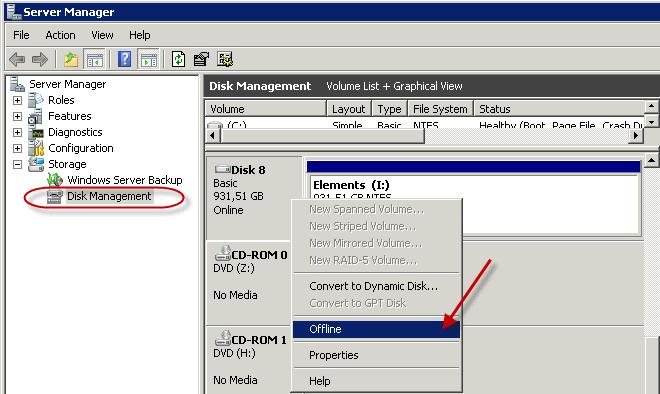
- Abra Gerenciamento de disco, clique com direito do mouse no HD USB, marque como OFF-LINE.
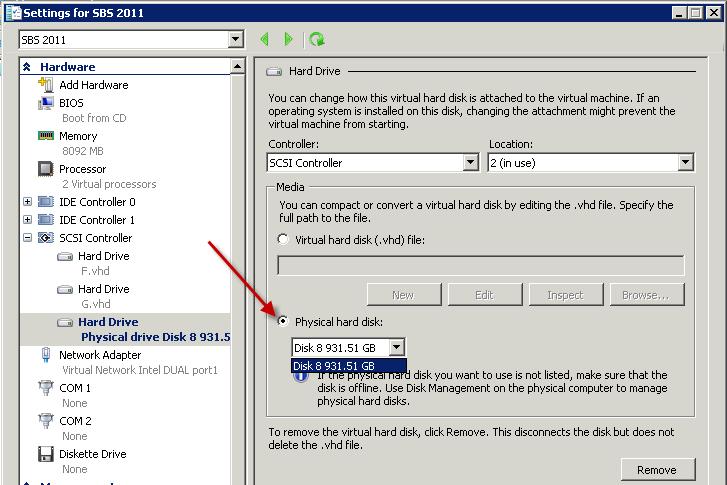
- Abra o Hyper-V, adicione um novo disco, e selecione "Disco Físico", estará lá, o HD USB....
Mais detalhes:
http://blog.ronnypot.nl/?p=721
Moderadores, se acharem que fiz errado em reviver um tópico antigo, podem excluir o post. Apenas quis compartilhar uma solução que encontrei...
Abraços
Rogerio

How to: attach a usb disk to a Hyper-V virtual machine

As the most of you know, Hyper-V does not support usb redirection. But with some relative easy steps we can redirect our usb disk to a Hyper-V virtual machine.
First on your Hyper-V Server host open Server Manager and select Disk Management

Then select your usb disk and right mouse click and choose Offline.
When done we close Server Management and open Hyper-V Manager. Select the settings of the virtual machine you would like to attach the usb drive to.

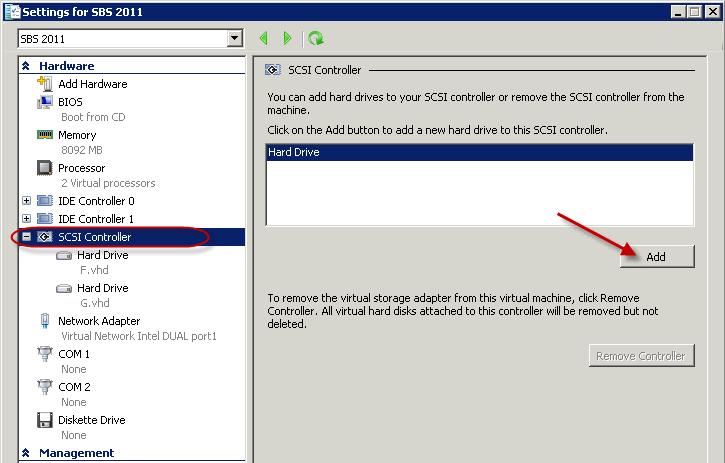
Select IDE Controller or SCSI Controller. Before you choose let me explain why I would choose the SCSI controller instead of the IDE controller for an usb redirected drive. A Hyper-V virtual machine can only boot from an IDE hard drive, you can only add a dvd drive on an IDE controller, you can only add 4 IDE devices. Another thing I would prefer to add an usb disk to the SCSI controller is I can add or remove disks to the virtual machine when it is running, to add an IDE controller disk I need to stop the virtual machine then add the disk and then start the virtual machine.
Now to add your usb disk to you virtual machine we choose Add

Now we choose for Physical hard disk: and choose the disk we would to add. If you have more disks available you can choose from a simple pull down list. You will only see here the disks that are set to offline so that was the first step we had to do. If you would like to add an internal hard disk you have to put it offline before you can add it.
Note: before you set another disk offline be sure there are no operating, system or application files on it because otherwise these or your whole server will crash.
When finished choose OK on the bottom of the screen and the disk is added to your virtual machine.
When we are going to look at your virtual machine and open Disk Management.

You will see the disk directly attached and you can use it within your virtual machine
If you would remove the drive from the virtual machine, go back to your Hyper-V Manager virtual machine settings on your host server.

Select the drive and choose remove and choose Apply or OK at the bottom of the screen.
After you have removed the disk from the virtual machine go back to Disk Management

Right click the drive and choose Online. Now the drive is available on your host server.
You can use this if you need to copy some files directly from the usb disk to the virtual machine or vice versa. Another thing you could use this is for is Windows / SBS backup this needs a local attached disk, although I don’t think this is a supported configuration! You can even if you have chosen for the SCSI controller change the backup disk when your virtual machine is running.

 
Fonte:  Rogerio Lanzarin - Post do dia sexta-feira, 5 de outubro de 2012 13:37
http://social.technet.microsoft.com/Forums/pt/hypervpt/thread/bddfb3c9-b591-4d2d-987f-092b3cc85715


Fonte:
http://windowserver.wordpress.com/2012/06/12/hyper-v-acceso-a-discos-usb/


segunda-feira, 26 de julho de 2010

Boot de VHD no Windows 7 maquina virtual

Boot de VHD no Windows 7
rafael.godinho
17 Aug 2009 12:20 AM

* Comments 0

Olá pessoal,

Estou preparando meu ambiente para as demos no TechEd Brasil 2009 e resolvi testar uma funcionalidade de conseguir dar boot de arquivos vhd do Windows 7. Abaixo você encontra algumas dicas e a maneira que utilizei para fazer a instalação, existem outras.

Dicas

*
A versão do Windows 7 que precisa ser instalada no arquivo vhd é a Ultimate ou Enterprise, outras versão não são suportadas;
*
O arquivo vhd precisa estar em um file system NTFS;
*
O arquivo vhd não pode estar compactado com NTFS;
*
O arquivo vhd precisa estar em um disco interno do computador, não é possível dar boot de vhd armazenado em disco USB;
*
O disco do computador precisa ter de espaço livre pelo menos o tamanho total do VHD, mesmo para um VHD dinâmico.

Como vocês devem imaginar, cometi todos os erros acima na minha instalação :)

Criação do arquivo VHD

O primeiro passo é criar um disco VHD, que pode ser realizado através da linha de comando DISKPART:

DISKPART
CREATE VDISK FILE=C:\VHD\.vhd MAXIMUM=20000 TYPE=EXPANDABLE
SELECT VDISK FILE=C:\VHD\.vhd
ATTACH VDISK
CREATE PARTITION PRIMARY
ASSIGN LETTER=V
FORMAT QUICK FS=NTFS LABEL=VHD
EXIT

Instalação

Depois do arquivo criado VHD, é necessário instalar o Windows 7. Existem algumas maneiras de realizar a instalação, eu preferi o script powershell Install-WindowsImagem, que pode ser utilizado para instalar um arquivo de imagem Windows (.wim), disponível no disco de instalação do Windows 7 em um arquivo VHD.

O arquivo wim está localizado no diretório \sources\install.wim da instalação do Windows 7.

Parar este script é necessário modificar a permissão de execução de scripts, conforme comando abaixo:

PS > set-ExecutionPolicy RemoteSigned

Em seguida devemos descobrir qual versão de Windows instalar, o comando abaixo lista as versões disponíveis:

PS> .\Install-WindowsImage.ps1 -WIM D:\sources\install.wim

Já a instalação leva em torno de 15 minutos e pode ser feita com o comando:

PS> .\Install-WindowsImage.ps1 -WIM D:\sources\install.wim -Apply -Index 5 -Destination V:

Configuração do boot

Após a instalação é necessário configurar o Windows 7 para o boot, imaginando que o disco que foi feita a instalação está montado no drive V, o processo seria feito com o comando:

V:\Windows\System32\bcdboot V:\Windows

Ao realizar um boot será exibido um menu para escolha de qual instalação subir, é só escolher a opção para o boot do VHD e terminar o processo de instalação.

Maiores detalhes podem ser encontrados no documento Using Install-WindowsImage to apply a Windows Image to a VHD.


Fonte: http://blogs.msdn.com/b/rafaelgodinho/archive/2009/08/17/boot-de-vhd-no-windows-7.aspx

Outros links:
http://blogs.msdn.com/b/knom/archive/2009/04/07/windows-7-vhd-boot-setup-guideline.aspx

http://edge.technet.com/Media/Windows-7-Boot-from-VHD/

http://social.technet.microsoft.com/Forums/pt-BR/winvistapt/thread/c3332461-8847-4a94-a41f-2fc88208309e